GETTING STARTED
Your first steps in Terminal Rebels
A free browser hacking game with your own server, a shared multiplayer world and a choice of desktop apps or terminal commands. Here is how to find your way in.
1. Create your free player account
Choose a player name and register on the homepage. Confirm your email address before playing; check your spam folder if the message is missing. You can request another confirmation email from the activation screen.
The registration form shows whether sign-ups are open and whether an invite code is needed. The game is free to play, with optional Premium packages.
Create an account →2. Find your way around the desktop
Files & software holds the programs on your server. Interwebs is where you visit remote servers, inspect their services and connect. The Task Manager shows what is running and which resources it uses. Open your server log to check for visitors and traces of activity.
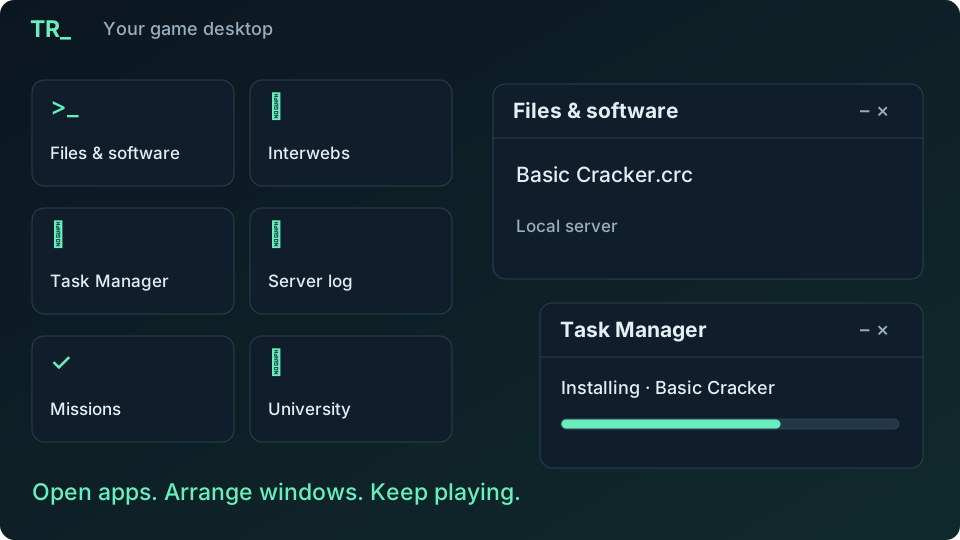
You can play with clicks or switch to a simulated Kali Linux or PowerShell console. Both have a simplified mode. No Linux installation, local shell or programming knowledge is required.
3. Finish the introductory certifications
Start at the University and follow the certification lessons. They introduce the tools and actions you will use in missions. Complete the required tutorial steps before accepting work: some pages and contracts only become available after the relevant certification.
Need a reminder? The Tutorial app on your desktop lets you reread the lessons. The public Wiki also explains software, hardware and missions. Open the Wiki ↗
4. Find servers and choose a mission
Use elgoog in Interwebs to find public companies. Explore the servers you discover and look for clues in text files, saved mail and logs. A lead can take you to another company with its own story. Contacts help you keep track of useful addresses.
Check Missions for work you can access. Read the requirements before accepting, prepare the right software and follow the objective carefully. Downloads, installations and other tasks take time; check their progress in the Task Manager.
5. Example: deliver software to a company
Here is a worked example of a Steal software contract after the practical tutorial. It illustrates the steps, not a particular live offer. Your briefing supplies the actual company, target, file and reward.
- Discover the hirer. Search for public companies in elgoog or visit the hirer directory through First Whois. Visit a company and save its address in your contacts. Return to Missions. Offers depend on known hirers and suitable software; your usable Cracker determines your mission tier. If nothing appears, finish Certification 2 and its practical tutorial, then check your tools and contacts.
- Accept and read the full objective. For this example, choose a Steal software job. Note the source server, requested file and destination company. This contract requires a delivered copy. Deleting the source file or installing an unrelated program will not complete it. Keep the briefing open alongside your other windows.
- Prepare your machine and connect. Make room for the file on your own disk and start the tools needed for access. Downloading a Cracker does not run it. Visit the target in Interwebs and use a valid known login or complete an allowed attack. Visiting a page alone does not give you file access.
- Download the right file. Find the mission-marked file on the target. Compare its name, type and version with the briefing; use the displayed file ID to distinguish similar entries. Download that file and wait for the Task Manager to confirm completion. A transfer still in progress is not a usable local copy.
- Deliver your downloaded copy. Connect to the hirer named in the briefing and upload the copy you just received. Ninezilla can help move files between your computer and connected servers. Keep each required connection open until its transfer finishes. Switching windows is fine; confirming a disconnect cancels tasks that need that connection.
- Claim and check the payment. Return to Missions once delivery finishes. When the contract is ready to complete, select one of your own bank accounts and confirm. Check the completion message and balance in Finances. The advertised reward is for that contract; another job can have different requirements and payment.
If the objective stays unfinished
Check the source and destination before uploading again. A matching filename alone is not enough: use the copy obtained for this mission, and wait for both transfers to finish. For the practical tutorial, follow its own objective instead: uploading a requested virus and installing it are separate steps, and another virus type does not substitute for the requested one.
For an account-balance job, report the requested observation instead of withdrawing the money. Emptying the account yourself fails that job, even if you later return the funds.
Mission types and requirements · Managing connections · Task progress and resources
6. Upgrade, cooperate and watch your traces
Spend your in-game earnings on better hardware or research stronger software. Plan around the resources your tasks need. Join a collective to work with other players, or explore on your own. This is a multiplayer world: while you investigate a target, someone else may be investigating you.
Server logs are part of that contest. Read your own log regularly and pay attention to what you leave on remote machines. All servers, tools and attacks described here belong to the fictional game world.